
From your Revit view
Start with a view of your own.
Set up the account you will use in Revit. No card needed.
- Your account
- Install Bloooom
Choose your account.
Use the Google account you will use in Revit. We use only its verified email.
Your next step is Revit.
Your verified account email
The Windows installer is unavailable right now. Nothing has downloaded.
Please try again later.
Installer SHA-256:
Install Bloooom
Chrome may say Suspicious download blocked. Click the download icon at the top right, open the Bloooom file and choose Download suspicious file. Edge may say the file isn't commonly downloaded: select the three dots (...), then Keep, then Show more, then Keep anyway. This happens because Bloooom is new. You can check the file against the SHA-256 shown above.
- Find Bloooom-Setup in your browser's downloads.
- Close every Revit window.
- Double-click Bloooom-Setup. If Windows says Windows protected your PC, choose More info, then Run anyway.
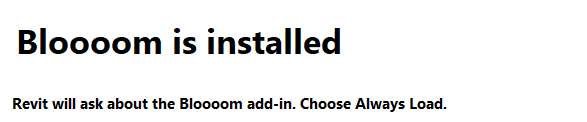
- Read the installation terms, tick I accept these installation terms. and click Install Bloooom. When you see Bloooom is installed, click Close. Open Revit.
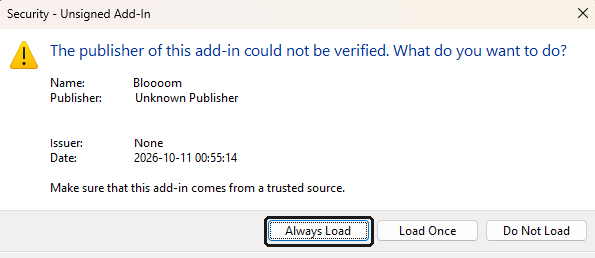
- Revit shows a security message about the Bloooom add-in. Choose Always Load.
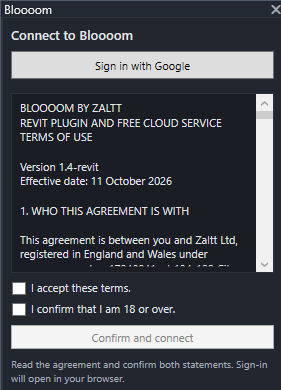
- Open the Bloooom tab, click its Bloooom button, then Sign in with Google. Read the service agreement and, if you agree, tick I accept these terms. and I confirm that I am 18 or over., then click Confirm and connect. Your browser opens. Choose the same Google account you used here, then return to Revit. If sign-in opens in the wrong Chrome profile, choose 'Use another account' on Google's page.
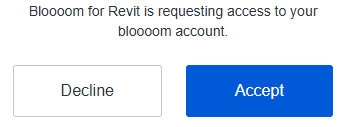
If Auth0 asks for permission
- Open a 3D view, enter your Prompt, choose a Style and click Visualise (Visualize if Windows uses the US region). Use the result to compare design options and check it against your model.
Bloooom supports Revit 2025, 2026 and 2027.
Clicked Do Not Load?
That cancels loading Bloooom. Save your work, close every Revit window, then open Revit again. When the Bloooom warning appears, choose Always Load. If the warning does not appear and the Bloooom tab is still missing, email hello@zaltt.com with your Revit version and what you see.
I chose Load Once. Is that a problem?
Bloooom loads for this session. Revit asks again the next time it loads the add-in. Choose Always Load then.
How this sign-in is used
Google and Auth0 verify your email. Bloooom does not copy your name, photo or phone number into this journey.
Tokens stay in page memory. Reloading clears your website session. Temporary session storage protects the sign-in return, and a sign-in marker cookie lasts up to one day. Changing account clears this website's session. Auth0, Google and Revit sessions remain unchanged.